Volunteer Scheduling System
Complete guide to the volunteer signup and management system for Lake Stevens Thrift
ADMIN DOCUMENTATIONSystem Overview
Two integrated components for complete volunteer management
The Lake Stevens Thrift volunteer system consists of two main parts that work together to streamline volunteer scheduling:
1. Public Volunteer Signup
A user-friendly page where volunteers can view available shifts, select their preferred times, and register to help at the store.
2. Admin Management Panel
A secure dashboard for store managers to view signups, manage capacity, and oversee the volunteer schedule.
Key Features at a Glance
Date-Based Scheduling
Volunteers pick specific dates and time slots that fit their schedule.
Capacity Management
Each shift has a configurable capacity limit to prevent overstaffing.
Multi-Slot Selection
Volunteers can sign up for multiple consecutive hours in one submission.
Duplicate Prevention
System checks email to prevent the same person signing up twice for a shift.
Email Confirmations
Automatic confirmation emails sent to volunteers upon signup.
Anti-Spam Protection
Built-in measures to prevent bot signups and spam submissions.
Public Volunteer Signup Page
Located at /volunteer on the Lake Stevens Thrift website
Page Layout
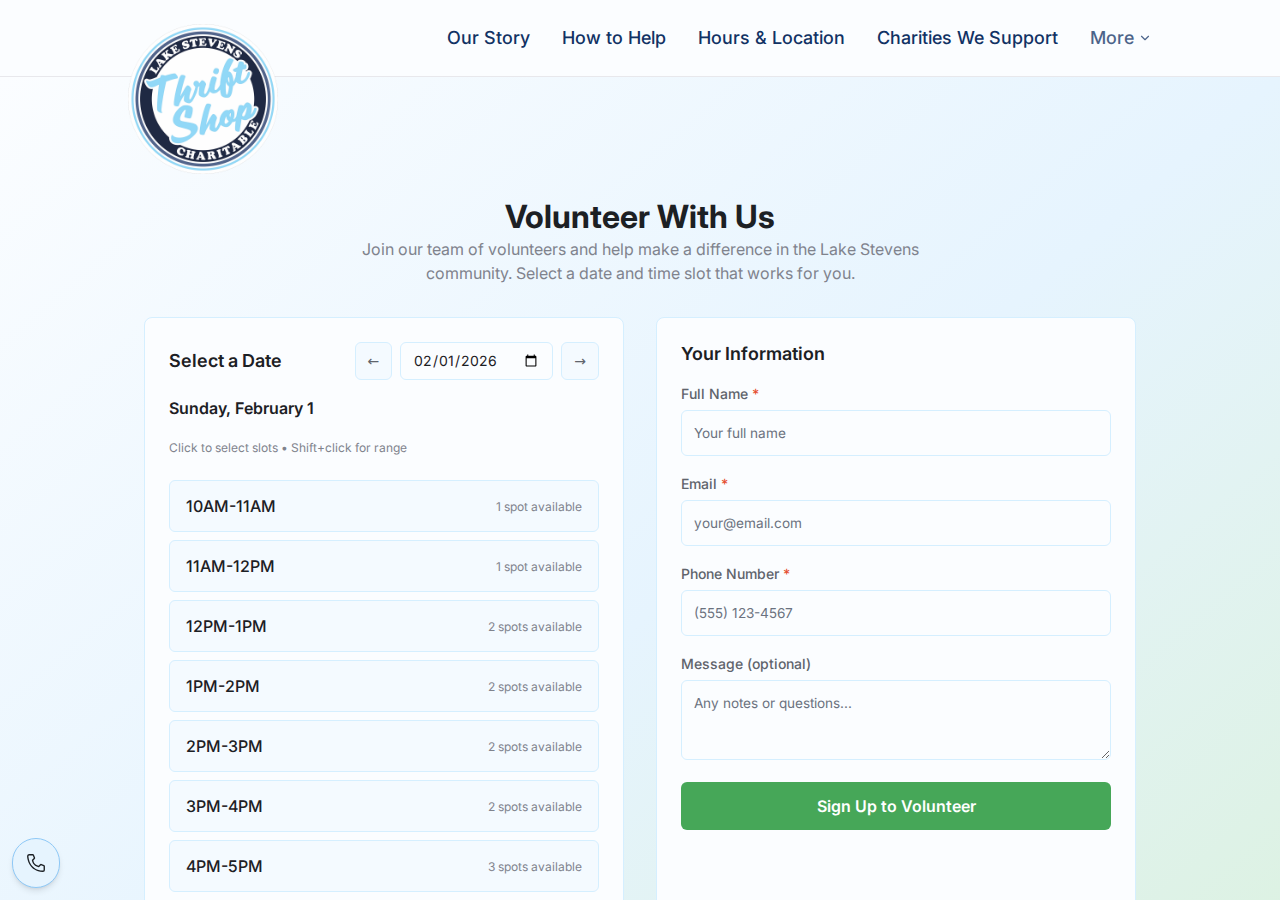
The signup page has a two-column layout:
- Left Column: Date picker and available time slots
- Right Column: Volunteer information form
On mobile devices, these stack vertically with the calendar on top.

Date Selection
- Date Picker: Click to open calendar and select any date
- Arrow Navigation: Use ← and → buttons to move one day at a time
- Date Display: Shows selected date in readable format (e.g., "Saturday, February 1")
Time Slot Display
Each day shows the available volunteer shifts:
| Slot Status | Display | Can Select? |
|---|---|---|
| Available | "3 spots available" (shows remaining capacity) | Yes - click to select |
| Full | "Full" (grayed out) | No - disabled |
| Already Signed Up | "✓ You're signed up" (green highlight) | No - already registered |
| Selected | Highlighted border | Click again to deselect |
Multi-Slot Selection
Volunteers can sign up for multiple hours at once using two methods:
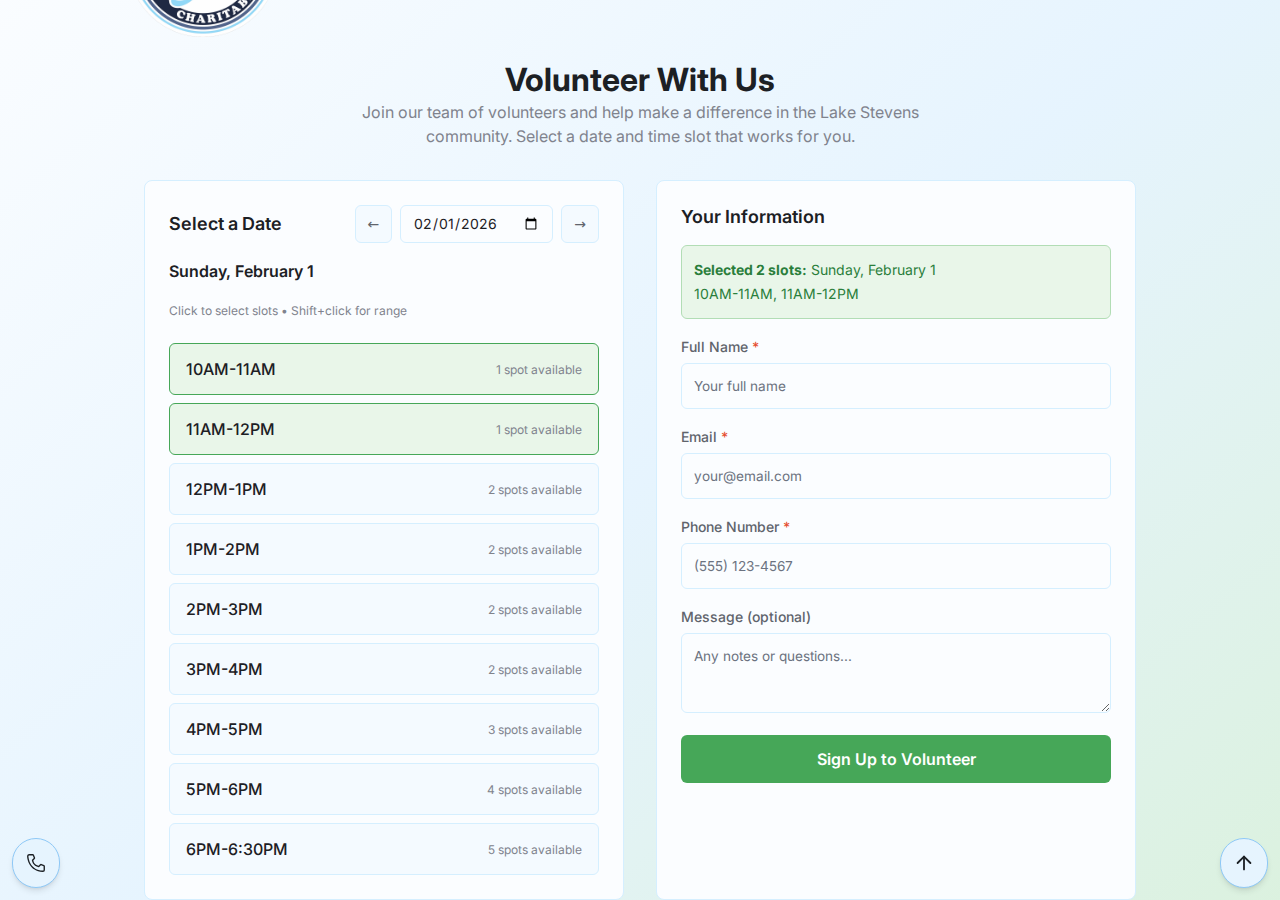
Click each desired time slot one by one. Each click toggles the slot's selection state.
Click one slot, then hold Shift and click another. All available slots between them will be selected automatically. Great for signing up for a full morning or afternoon!
A selection summary appears above the form showing all selected slots (e.g., "Selected 3 slots: Saturday, February 1 - 10AM-11AM, 11AM-12PM, 12PM-1PM").
Signup Form Fields
| Field | Required | Purpose |
|---|---|---|
| Full Name | Yes | Identify the volunteer |
| Yes | Send confirmation; check for existing signups | |
| Phone Number | Yes | Contact if needed |
| Message | No | Special notes or questions |
When a volunteer enters their email and clicks out of the field, the system checks if they're already signed up for any shifts that day. If so, those slots show "✓ You're signed up" to prevent duplicates.
Confirmation Flow
- Volunteer clicks "Sign Up to Volunteer"
- System validates form and anti-spam checks
- Signup sent to server API
- Success modal appears with confirmation details
- Email confirmation sent automatically
- Page refreshes capacity to reflect new signup
- Volunteer can immediately sign up for more days
Admin Volunteer Management
Secure dashboard at memcap.dev/admin/volunteer
The admin panel requires login with authorized credentials. Contact your system administrator for access.
Accessing the Admin Panel
- Go to memcap.dev/admin/volunteer
- Log in with your admin credentials
- Select the "lsthrift" tenant if prompted
- You'll see the volunteer management dashboard
Admin Dashboard Features
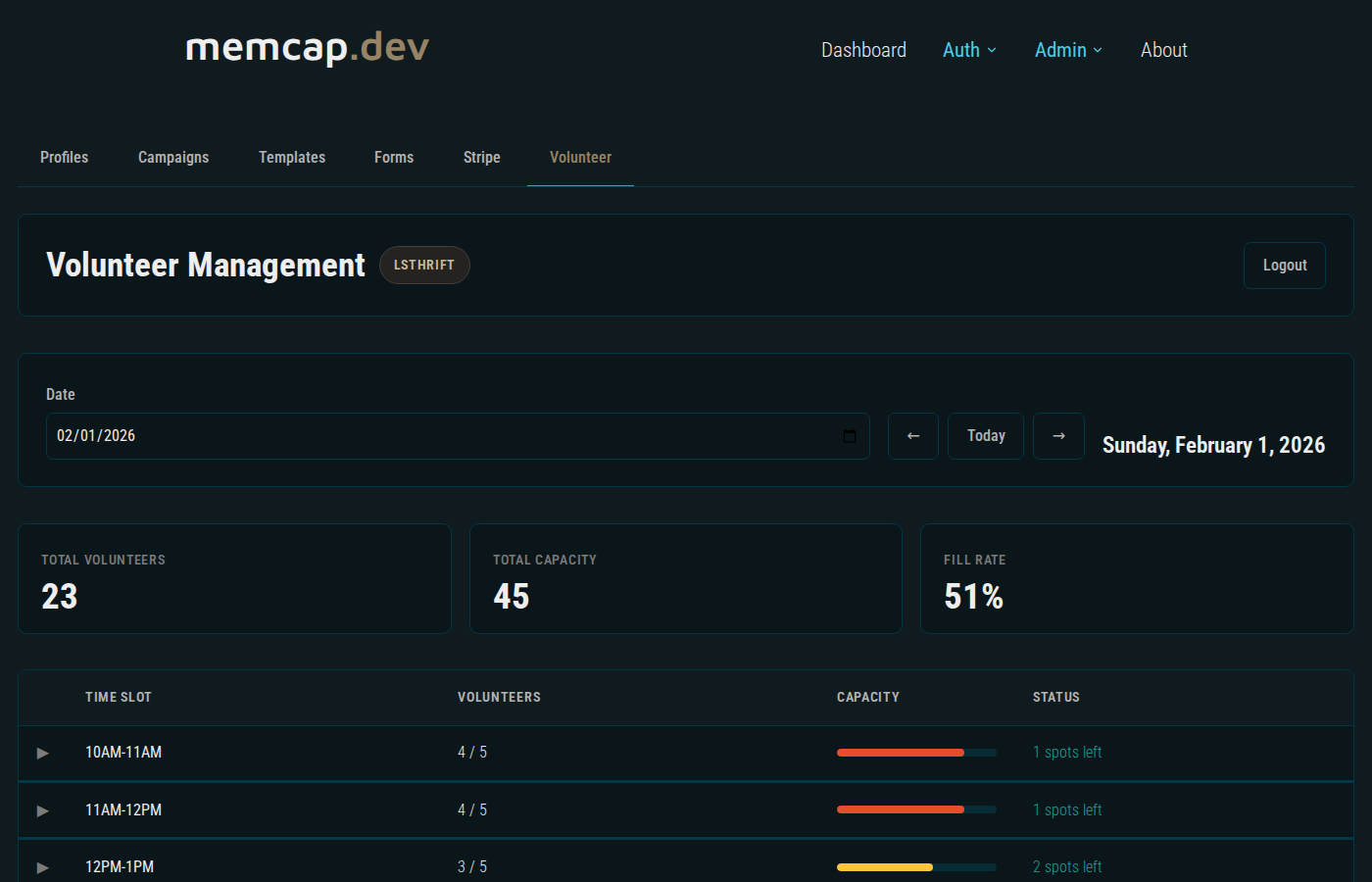
Date Navigation
Same date picker and navigation as the public page - view any date's volunteer schedule.
Shift Overview
For each configured shift, admins can see:
- Time slot (e.g., "10AM-11AM")
- Current signups count
- Total capacity
- Remaining spots
- List of signed-up volunteers
Volunteer Details
For each signup, admins can view:
- Volunteer name
- Email address
- Phone number
- Message/notes (if provided)
- Signup timestamp
Managing Signups
Admins can:
- View all signups for any date
- Cancel signups on behalf of volunteers
- See signup history and patterns
Tenant Indicator
The admin panel shows a badge indicating which tenant's data you're viewing (e.g., "LSTHRIFT"). This confirms you're managing Lake Stevens Thrift volunteer data.
System Policies
Important rules and limitations built into the system
Cancellation Policy
The public signup page does not allow volunteers to cancel their own signups. This is an intentional design decision.
Why No Self-Cancellation?
- Ensures store staff are aware of schedule changes
- Prevents last-minute no-shows without communication
- Allows staff to follow up with volunteers
- Creates accountability in the scheduling process
How Volunteers Cancel
If a volunteer needs to cancel, they must contact Lake Stevens Thrift directly:
- Call the store during business hours
- Email through the contact page
- Visit in person
An admin can then cancel the signup through the admin panel.
Duplicate Prevention
The system prevents the same email address from signing up for the same shift twice. When a volunteer enters their email, the page checks for existing signups and displays "✓ You're signed up" for shifts they've already registered for.
Capacity Limits
Each shift has a maximum capacity. When a shift reaches capacity, it displays "Full" and cannot accept more signups. The admin can adjust capacity settings as needed.
Anti-Spam Protection
To prevent automated bot signups, the system includes:
- Delayed Form Loading: 2-second countdown before form appears
- Minimum Submit Time: Must wait 3 seconds after form loads
- Hidden Honeypot Fields: Trap fields that bots fill but humans don't see
- Token Validation: Cryptographic token verified on submission
Technical Details
For system administrators and developers
Available Time Slots
Default configured shifts for Lake Stevens Thrift:
| Time Slot | Duration | Notes |
|---|---|---|
| 10AM-11AM | 1 hour | Opening shift |
| 11AM-12PM | 1 hour | |
| 12PM-1PM | 1 hour | Lunch coverage |
| 1PM-2PM | 1 hour | |
| 2PM-3PM | 1 hour | |
| 3PM-4PM | 1 hour | |
| 4PM-5PM | 1 hour | |
| 5PM-6PM | 1 hour | |
| 6PM-6:30PM | 30 min | Closing shift |
Data Structure
Shift Key Format
Example: 2025-02-01:10AM-11AM
Signup Record Contains
- tenantId: "lsthrift"
- email: Volunteer's email address
- name: Volunteer's full name
- phone: Volunteer's phone number
- shiftKey: Date and time (e.g., "2025-02-01:10AM-11AM")
- message: Optional notes
- createdAt: Signup timestamp (ISO format)
Planned Enhancements
Features under consideration for future development
Self-Service Cancellation
Allow volunteers to cancel their own signups (with time limit restrictions).
Reminder Emails
Automatic email reminders 24 hours before scheduled shifts.
Recurring Signups
Sign up for the same shift every week without re-registering.
Waitlist
Join a waitlist when shifts are full; get notified if spots open.
Check-In System
Mark volunteers as arrived/completed for attendance tracking.
Hours Reporting
Track and export volunteer hours for recognition and reporting.
Questions or Issues?
Contact your system administrator or reach out for technical support.
Contact Support


